
Introduction
Backing up your iPad to the cloud is a crucial step in protecting your valuable data. Using cloud services like iCloud provides the peace of mind that your photos, apps, and critical information are secure. In this comprehensive guide, we’ll explain how to backup your iPad using iCloud, while exploring other viable options available to you in 2024.
Understanding iCloud Backup
It’s essential to know what iCloud backup involves before diving into the process. Apple’s iCloud offers a robust and seamless way to store your data in the cloud, allowing access from any Apple device.
What is iCloud?
iCloud is Apple’s cloud service, designed to automatically store your data, such as photos, documents, and app data, on Apple’s secure servers. When you back up your iPad to iCloud, you create a secure copy that can be restored if needed.
Benefits of Using iCloud for Backup
Using iCloud to back up your data comes with several key advantages:
– Automatic Backups: iCloud automates daily backups when your iPad is connected to Wi-Fi and a power source, simplifying data protection.
– Secure Storage: Apple’s advanced security measures ensure your data remains safe and private.
– Easy Accessibility: Access backed-up data from any Apple device tied to your iCloud account, providing flexibility and convenience.
iCloud Storage Plans Available in 2024
In 2024, Apple continues to offer a variety of iCloud storage plans to meet different user needs:
– Free Plan: Provides 5GB of storage, suitable for basic backup needs.
– 50GB Plan: Offers additional storage at a low monthly cost, ideal for moderate storage needs.
– 200GB & 2TB Plans: These options cater to users with extensive data storage requirements and multiple devices.
Setting Up iCloud Backup on Your iPad
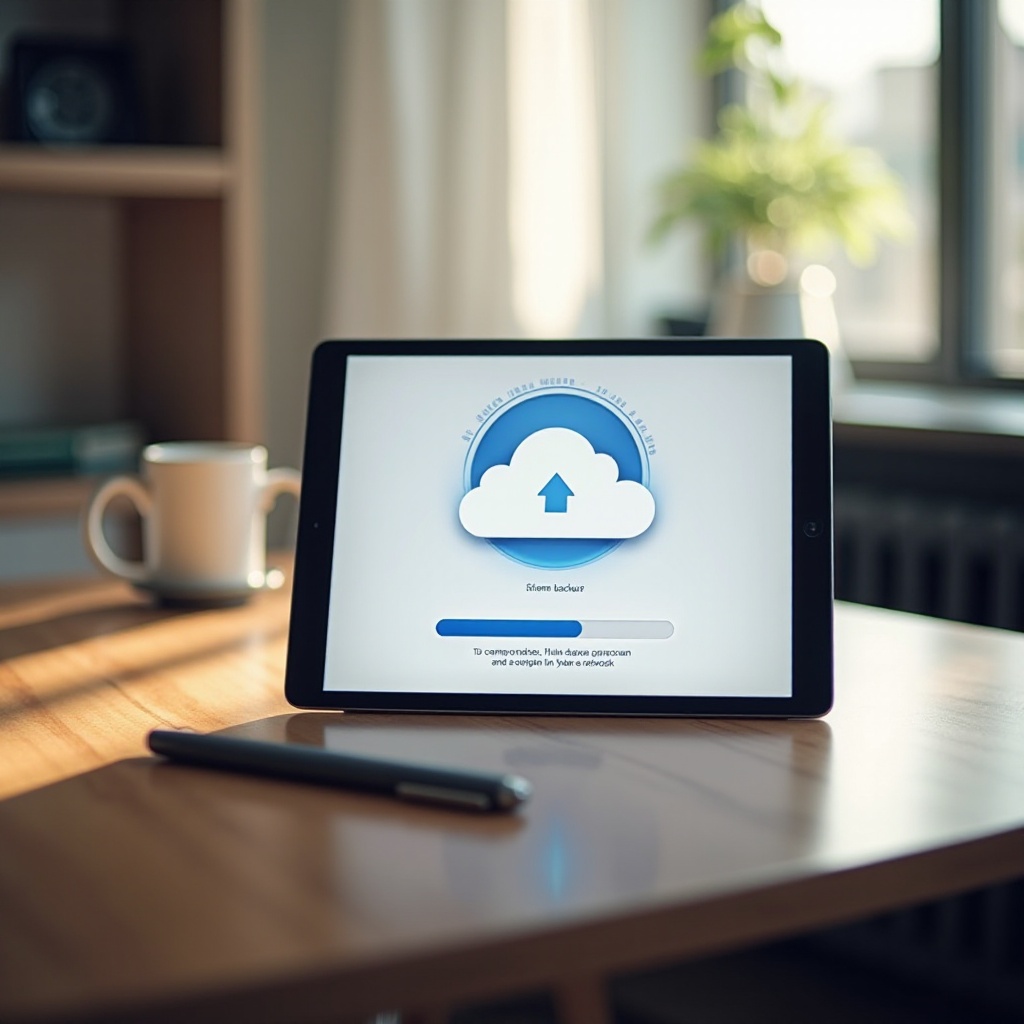
Having grasped the essentials of iCloud, let’s guide you through the setup phase. This step-by-step approach will enable you to configure iCloud backups on your iPad with ease.
Checking Your iCloud Storage Availability
Before backing up, verify your available iCloud storage:
1. Open ‘Settings’ on your iPad.
2. Tap on your ‘Apple ID’ at the top, followed by ‘iCloud’.
3. Select ‘Manage Storage’ to view current usage and plans.
Establishing a Stable Wi-Fi Connection
For a successful backup, ensure your iPad is connected to a stable Wi-Fi network:
– Connect to Wi-Fi if not already connected by navigating to ‘Settings > Wi-Fi’.
Step-by-Step Process to Enable iCloud Backup
- Open ‘Settings’.
- Tap on ‘Apple ID’ at the top, then select ‘iCloud’.
- Choose ‘iCloud Backup’ and turn on the switch.
- Tap ‘Back Up Now’ to initiate a backup immediately.
Verifying and Managing Your iCloud Backup
Once you’ve set up your iCloud backup, verifying its success and managing your data efficiently is next.
How to Confirm Your iPad Backup Status
Check your backup status easily:
1. Head to ‘Settings > [Your Name] > iCloud > iCloud Backup’.
2. Under ‘Back Up Now’, look for the timestamp of your last successful backup.
Managing and Optimizing iCloud Storage
Keep your iCloud storage optimized:
– Remove old device backups by selecting them in ‘Manage Storage’.
– Review other stored data in ‘Manage Storage’ to delete unnecessary files.
Adjusting Backup Settings for Efficiency
Enhance efficiency by:
– Choosing to back up only essential apps. Access this by going to ‘Manage Storage > Backups’ and deselecting apps you don’t need to back up.
Exploring Alternative Cloud Backup Solutions
While iCloud is straightforward, exploring other cloud storage options can be beneficial for some users.
Overview of 2024 Third-Party Cloud Services
Apart from iCloud, other cloud services include:
– Google Drive, Dropbox, and OneDrive, which offer flexible storage solutions and iOS compatibility.
Comparing Cloud Storage Providers
When choosing a service, consider:
– Price: Compare different plans and storage limits.
– Compatibility: Ensure the service integrates well with your devices.
– Security: Opt for providers with rigorous encryption and security measures.
Steps to Back Up Using Alternative Services
- Download and open the app (Google Drive, Dropbox, etc.).
- Create an account or sign in if you already have one.
- Upload files by selecting and backing up your important iPad data.

Conclusion
Backing up your iPad to the cloud is not only simple but paramount for data safety. With iCloud, you have an integrated, Apple-designed solution for all Apple users. Alternative options like Google Drive offer additional flexibility. Stay in control of your data by setting up and routinely managing your cloud backups.
Frequently Asked Questions
How often should I back up my iPad to the cloud?
It’s recommended to back up your iPad at least once a month, but iCloud’s automatic daily backups provide optimal protection.
Can I back up my iPad using mobile data instead of Wi-Fi?
iCloud backups require a Wi-Fi connection due to the amount of data involved. Ensure you connect to a reliable Wi-Fi network for backups.
What should I do if my iCloud storage is full?
You can purchase additional storage, delete unnecessary files, or use other cloud services to store excess data.