
Introduction
Connecting your Nintendo Switch to a TV dramatically enhances your gaming environment by shifting gameplay from the palm of your hand to the grandeur of a big screen. Whether you’re diving into sprawling adventures or battling it out with friends, a TV connection brings your games to life through improved visuals and sound. This comprehensive guide will walk you through the process of connecting your Nintendo Switch to a TV in 2024, ensuring you enjoy every pixel and sound byte your games have to offer.
Equipment Needed for Connecting Nintendo Switch to Your TV
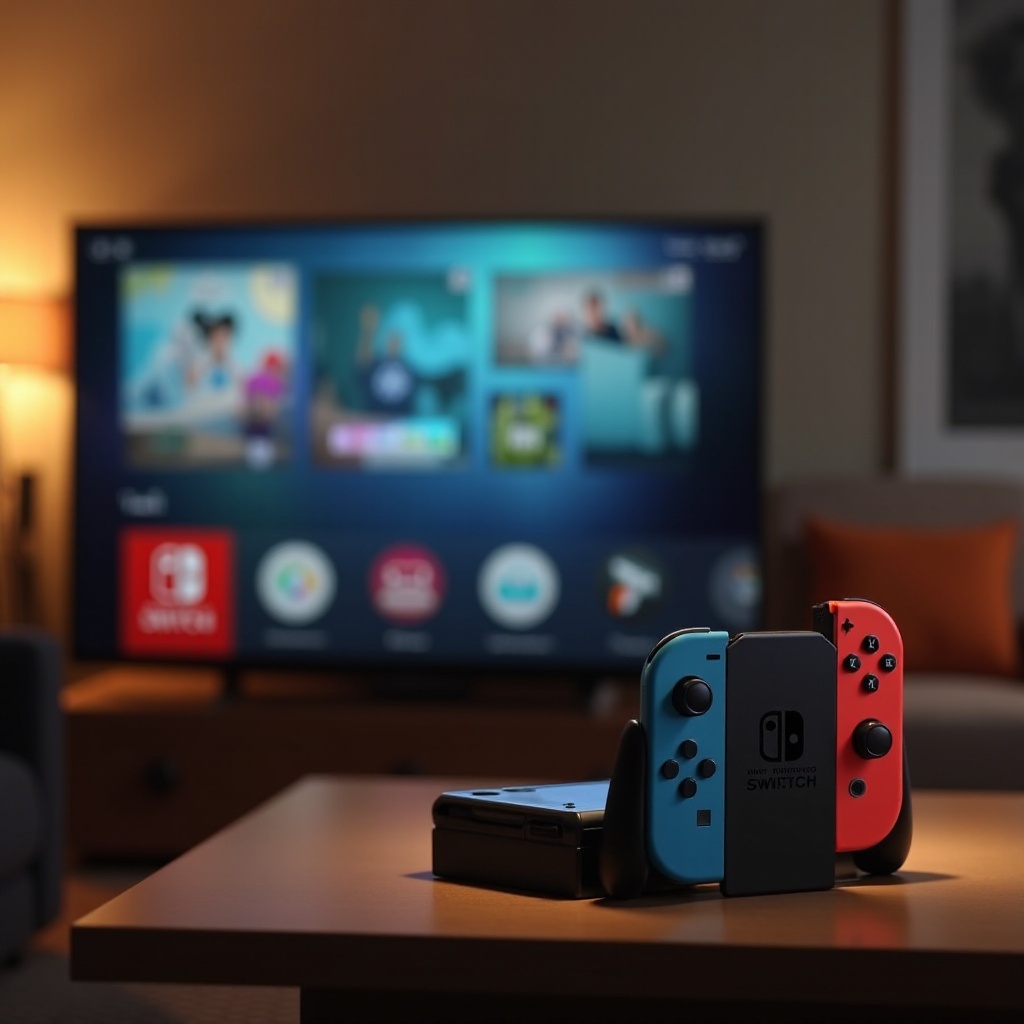
Before you dive into gaming, it’s crucial to gather the right equipment to ensure a smooth connection process. Here’s what you’ll need:
– Nintendo Switch console
– Nintendo Switch dock
– HDMI cable
– A TV with at least one HDMI port
– Power adapter
Having all these components at hand before you start will make the connection process smoother and prevent any frustrating charges to hunt for missing pieces mid-setup.
Step-by-Step Guide to Connect Your Nintendo Switch to a TV
Now that you have all your equipment ready, it’s time to connect your Nintendo Switch to your TV. Follow these steps for a seamless setup:
- Setting Up Your Nintendo Switch Dock
-
Place the dock close to your TV and ensure there’s a power outlet nearby. Open the back cover to reveal the necessary ports for connection.
-
Connecting the Dock to the TV with HDMI
-
Insert one end of the HDMI cable into the HDMI OUT port on the dock. Connect the other end to an available HDMI port on your TV.
-
Powering On and Selecting the Correct HDMI Input
- Attach the power adapter to the dock and plug it into a power source. Turn on the TV and navigate to the input source menu, selecting the HDMI input where the Switch is connected. Your Nintendo Switch’s Home screen should now be visible on your TV.
Following these detailed steps will ensure your Nintendo Switch is successfully displayed on your TV, allowing for a richer, more immersive gaming experience.
Troubleshooting Common Connection Issues
Sometimes, despite careful setup, things don’t go according to plan. Here are solutions to common issues you might encounter:
- Fixing HDMI Signal Problems
-
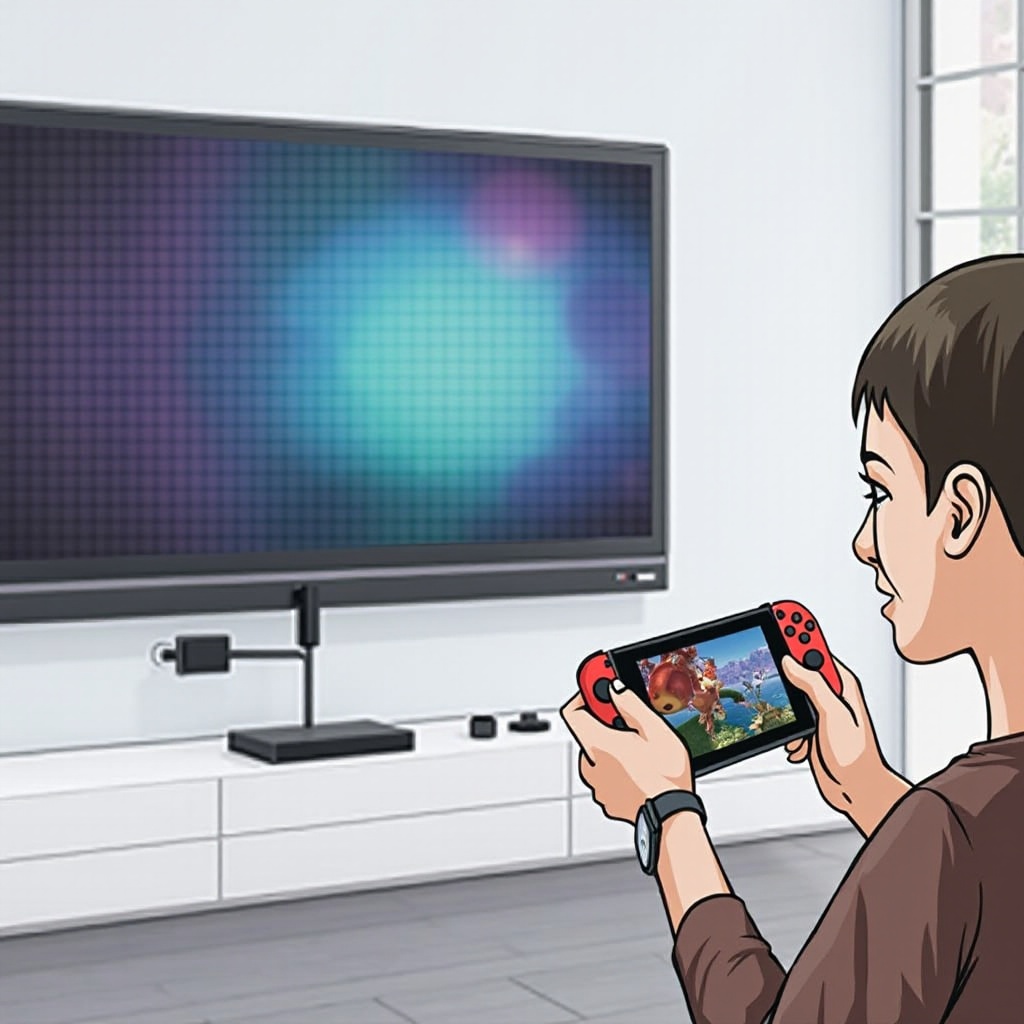
Make sure both ends of the HDMI cable are firmly connected. If you still experience issues, try swapping out the HDMI cable or using a different port on the TV.
-
Resolving Display and Sound Issues
- Double-check that the TV is set to the correct input source and reboot the Nintendo Switch. Also, verify the audio settings on your TV to ensure the sound is being outputted correctly from connected devices.
These troubleshooting tips should help get your system up and running, allowing you to indulge in uninterrupted gaming.
Optimizing Your TV Settings for the Best Gaming Experience
To fully appreciate your Nintendo Switch on a TV screen, optimizations can make a significant difference.
- Calibrating TV Display Settings
-
Adjust the brightness, contrast, and color settings to enhance the viewing experience. Most modern TVs offer a ‘Game Mode’ that minimizes picture lag, which should be enabled for smoother gameplay.
-
Enhancing Sound for Immersive Gameplay
- For a more engaging audio experience, consider investing in a soundbar or external speakers. Those who prefer a more personal setup might opt for headphones, which can offer superior audio quality.
By tweaking these settings, you can significantly boost both visual and audio performance, making your gaming sessions more engaging.
Additional Tips for Enhancing Your Nintendo Switch Gaming Experience
Once your Nintendo Switch is connected and optimized, there are additional considerations to maximize your setup:
- Choosing the Right Accessories
-
Accessories like pro controllers can provide more comfortable gameplay, especially for extended sessions. Additionally, a controller charging dock and screen protectors are valuable investments.
-
Maintaining Connection Stability
- To ensure a robust gaming experience, consider using a LAN adapter for wired internet connectivity, which tends to offer more reliability and less lag compared to Wi-Fi, particularly in online gaming scenarios.
These additional measures help cultivate a perfect gaming environment, blending comfort with functionality for a superior gaming setup.
Conclusion
With this guide, connecting your Nintendo Switch to a TV is straightforward, enhancing the experience of your favorite games with larger visuals and clearer sound. Make sure to follow each step, and use our tips to troubleshoot any issues, so that your setup is flawless and your gaming sessions immersive.
Frequently Asked Questions
Can I Connect the Nintendo Switch Lite to a TV?
No, the Nintendo Switch Lite cannot be directly connected to a TV as it lacks TV output capabilities.
What Should I Do if My Nintendo Switch Isn’t Displaying on the TV?
Check all cable connections and the TV input setting. Restart your devices and try different HDMI ports or cables.
Will Using a Third-party Dock Affect My Nintendo Switch?
Using third-party docks can sometimes pose risks to your device. It’s safer to use the official Nintendo dock to avoid possible issues.