
Introduction
Notifications have become an integral part of our digital experience, offering instant updates and alerts. While they keep us informed, notifications can often interrupt our workflow, disrupt our concentration, and overwhelm us with information. Knowing how to manage and turn off notifications on your MacBook can significantly improve your productivity and overall MacBook experience. In this guide, we will explore step-by-step methods to disable notifications effectively, allowing you to tailor the notification settings to meet your specific needs.

Understanding MacBook Notifications
MacBooks run on macOS, and it includes a robust notification system designed to keep users informed. These notifications can come in as banners, alerts, sounds, or badges, each serving different functions. For example, banners briefly appear on the screen’s top right and dismiss themselves, while alerts require your interaction to disappear. Understanding these different notification types is essential as it allows you to customize them according to each app’s relevance. In the following sections, we’ll delve into managing these notifications by turning them off for specific apps, utilizing Do Not Disturb mode, and setting up Focus modes.
Turning Off Notifications for Specific Apps
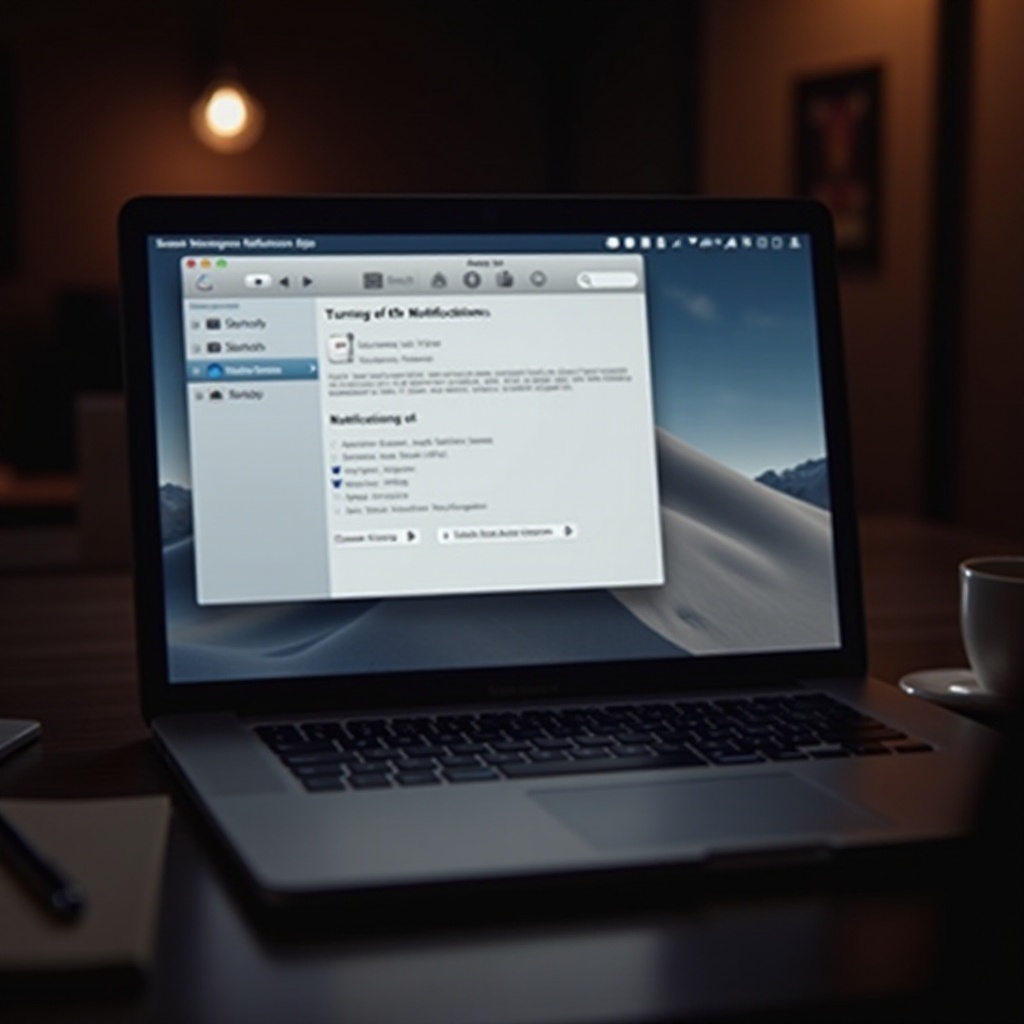
If certain apps interrupt your workflow more than others, disabling notifications for these apps is a practical solution. Follow these steps to achieve this:
1. Open ‘System Preferences’ on your Mac.
2. Click on ‘Notifications & Focus’.
3. You’ll see a sidebar with a list of apps; select the one you wish to modify.
4. Uncheck the ‘Allow Notifications’ to disable them for that specific app.
By managing your notifications in this manner, you ensure that your MacBook provides only the most necessary alerts, limiting distractions. This is especially useful when working on critical tasks where concentration is key.
Utilizing Do Not Disturb Mode
For those times when you need a break from all notifications, the Do Not Disturb feature on your MacBook becomes incredibly handy. Here’s how to use it effectively:
1. Access the ‘Control Center’ from your Mac’s menu bar.
2. Select ‘Do Not Disturb’ to mute notifications temporarily. You can choose to enable it immediately or schedule it for specific times, such as during work hours or late at night.
3. To customize, head back to ‘System Preferences’, select ‘Notifications & Focus’, then set a schedule under the Do Not Disturb section.
Do Not Disturb is perfect for periods when you need undisturbed time, helping to maintain focus and reduce interruptions without altering individual app settings.
Setting Up Focus Modes for Customized Notification Control
Focus modes in macOS offer a tailored approach to managing notifications, allowing you to set different profiles for work, leisure, or sleep. To create and customize these modes:
1. Open ‘System Preferences’ and navigate to ‘Notifications & Focus’.
2. Click on ‘Focus’ and choose the ‘+’ symbol to add a new mode.
3. Select the apps and contacts from which you wish to receive notifications during this mode.
4. You can also schedule these modes to activate automatically based on time or location, ensuring your MacBook’s settings reflect your needs at any given moment.
By utilizing Focus modes, you create an environment on your MacBook that minimizes distractions while maximizing productivity, allowing you to manage your tasks efficiently.
Troubleshooting Common Notification Issues
Despite diligent management, some users still encounter stubborn notification issues. If notifications persist despite adjustments, consider the following troubleshooting steps:
– Check for macOS updates: An outdated system might cause notification glitches, so keep your software updated.
– Verify individual app settings: Ensure that your changes were saved and applied correctly in ‘System Preferences’.
– Restart your MacBook after modifications to ensure all settings are properly enforced.
Taking these steps can help resolve common notification issues, but for more complex problems, consulting Apple’s support resources may be beneficial.
Conclusion
Being in control of your MacBook’s notification system leads to a more focused and productive experience. By selectively disabling notifications, using the Do Not Disturb feature, and customizing Focus modes, you can ensure that your time on the MacBook is spent efficiently, free from unwanted alerts. These steps not only help you manage interruptions but also promote a more seamless workflow tailored to your lifestyle and work habits.
Frequently Asked Questions
How do I completely silence all notifications on my MacBook?
Enable ‘Do Not Disturb’ in the ‘Control Center’ or disable notifications for each app in ‘System Preferences’.
Can Focus modes be synced across my Apple devices?
Yes, Focus modes can be synced by enabling ‘Share Across Devices’ under ‘Notifications & Focus’ in ‘System Preferences’.
Why are notifications still appearing even after turning them off?
Ensure settings are saved correctly and restart your MacBook. Check for software updates that might affect notifications.